
Home / Blog / How to Search GST Sales Purchase Database Files in Excel
How to Search GST Sales Purchase Database Files in Excel
Ten spreadsheet recipes to search gst sales purchase database files by state, pincode, status and name, with examples you can copy.
What you can request
Tell us your target and we prepare a sample.
To search gst sales purchase database files that arrive as spreadsheets, you need only a handful of filters, a lookup and a pivot table. This guide gives ten recipes, each with a goal and a small example, so an analyst can answer common questions in minutes rather than scrolling through thousands of rows.
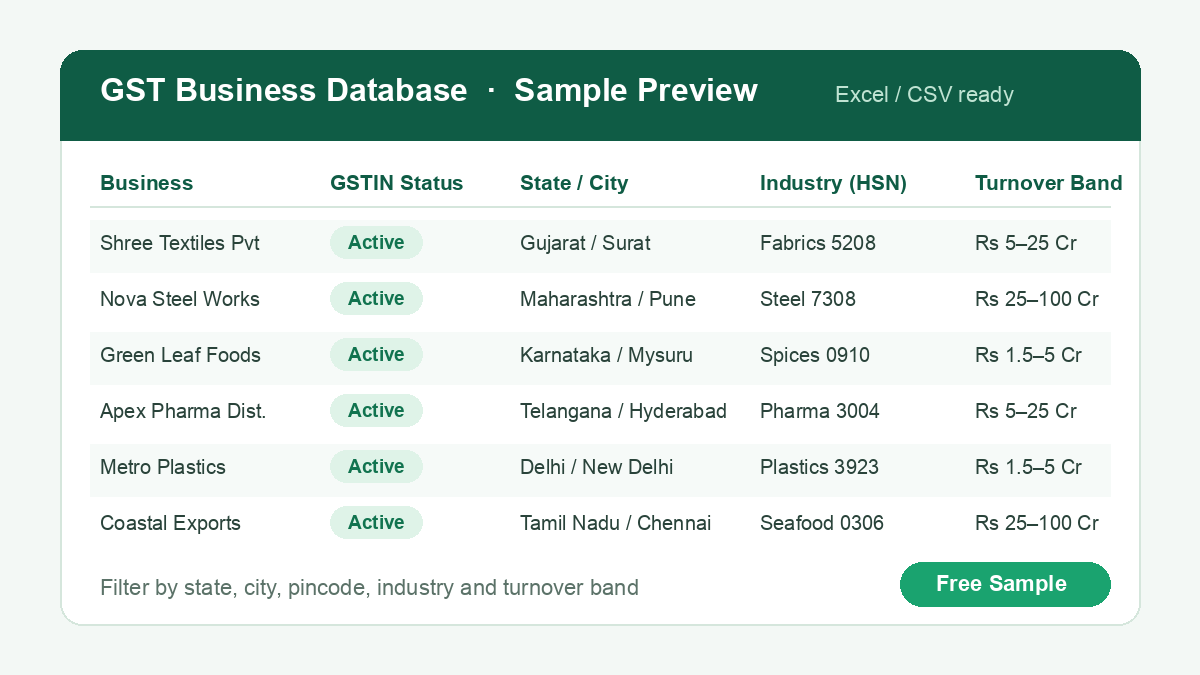
Set up the sheet before searching
A few minutes of preparation make every later search faster.
- Convert the range into a table so filters and formulas expand automatically.
- Format the GSTIN column as text. Spreadsheets sometimes mangle long codes.
- Add helper columns: state code (first two characters of the GSTIN), and PAN part (characters three to twelve).
- Add a “checked on” date column for any row you verify.
- Freeze the header row.
With these in place, each recipe below becomes a simple operation.
Recipes for finding the right businesses
Recipe 1: Filter by state and city
Goal: see only the area you serve. Use the table filter on state, then on city. If city spelling varies, use the filter’s “contains” option with a short fragment, such as the first five letters.
Recipe 2: Filter by pincode range
Goal: cover a delivery zone. Sort the pincode column and select the block of codes your van or salesperson covers. A neat trick is to write the zone name in a new column so you can reuse it.
Recipe 3: Keep only active registrations
Goal: avoid wasting calls on closed firms. Filter the status column to show only active. Save the removed rows on a second sheet, because cancelled firms can reveal how fast a market turns over.
Recipe 4: Filter by constitution
Goal: separate companies from proprietors. Companies often need a purchase order and approval, proprietors can decide at once, so your script and your sender may differ.
Recipes for cleaning and checking
Recipe 5: Find duplicates by GSTIN
Goal: avoid calling a firm twice. Use the duplicate highlighter on the GSTIN column. For near duplicates with different spellings, sort by the PAN helper column and read neighbouring rows.
Recipe 6: Find rows with missing contact details
Goal: separate callable rows from ones needing research. Filter the contact column for blanks and copy them to a “to research” sheet.
Recipe 7: Look up a GSTIN in your existing customer list
Goal: mark current customers so nobody cold-calls them. Use a lookup formula that checks each GSTIN against your customer sheet and returns “existing” if found. Then filter out those rows from the prospect list.
Recipes for understanding the market
Recipe 8: Pivot by district or pincode
Goal: see where businesses cluster. Insert a pivot table with pincode in rows and a count of GSTIN in values. Sort descending to see the densest zones first.
Recipe 9: Pivot by registration year
Goal: spot growth. Extract the year from the registration date into a helper column, then pivot count by year. A rising count in recent years hints at a growing area. Treat it as an indication only.
Recipe 10: Group by PAN to spot multi-state firms
Goal: find firms registered in several states. Pivot by the PAN helper column and filter for counts above one. These are good targets for one central conversation instead of several local ones.
Quick reference table
| Question | Recipe |
|---|---|
| Who is in my zone? | 1 and 2 |
| Who is still active? | 3 |
| Who needs a purchase order? | 4 |
| Who am I calling twice? | 5 and 7 |
| Where do I need more data? | 6 |
| Where are they clustered? | 8 |
| Is the market growing? | 9 |
| Who works across states? | 10 |
A worked mini example
A hypothetical dealer of agricultural pumps in Rajkot receives a file for Gujarat. He filters state, then keeps only districts in Saurashtra, drops cancelled rows, and marks his existing customers using a lookup. A pivot by pincode shows a dense cluster around three market towns. He calls those first. The whole search, from opening the file to a call list, takes under an hour.
Our sibling article on where to get GST sales purchase data explains where files like this come from, while the city-wise data page shows typical layouts.
What spreadsheets cannot search for
No filter will find a firm’s turnover, supplier list or invoice details, because a ready database does not contain them. A search for such things returns blanks. If your boss expects them, explain that those records are private to each firm.
Habits that keep searches accurate
- Always work on a copy and keep the original file.
- Record every filter you used so someone can repeat it.
- Re-check status in the public taxpayer search before important calls.
- Note the date of the file in the sheet name.
- Avoid merging cells, which breaks sorting and pivots.
Combining recipes into a daily routine
Searching becomes quick when recipes are chained. A practical morning routine for a team lead has five steps: apply the state and pincode filter for the zone of the day, keep active rows, remove existing customers with the lookup, sort by registration year so established firms come first, and copy the result into the callers’ sheet. Save this routine as written steps in a note, since a new colleague can then repeat it without asking.
Saving views
If your spreadsheet supports saved views or macros, store the filter combinations that you use every week, such as “Zone A active prospects”. Give them clear names. If it does not, keep a copy of the sheet per zone and update both when the main file changes.
Checking your own search results
After any search, test five rows from the result by reading them fully. If one of them is clearly outside your intended filter, your filter has a hole, often caused by spelling differences in city names. Fix the filter and rerun it, since a quiet error here sends callers to the wrong place all week.
A five-minute self test for your team
Give a new analyst a sample file and ask five questions: how many active rows are in one pincode, which pincode has the most rows, which GSTINs appear twice, which rows lack a contact and which firms appear in your customer sheet. If they answer all five within the time, the recipes have been learned. If not, sit with them on the one that failed and repeat.
Keep the answers in a short note so you can check later that the file was read correctly.
Mistakes that give wrong search results
- Searching on a name typed two different ways and concluding a business is missing.
- Filtering by state before checking whether the file stores state as a name or as a code.
- Sorting one column alone, which scrambles the rows and breaks every record.
- Forgetting that blank cells are not the same as “no”, so a filter on a contact column silently drops half the list.
- Saving over the original file instead of working on a copy.
Keep the untouched file in one folder and do all searching in a copy with the date in its name. If a result looks surprising, go back to the original and repeat the search before trusting it.
Frequently asked questions
Which spreadsheet feature is the most useful for beginners?
Table filters, then pivot tables. They answer most questions without any formulas.
How can I search by partial name?
Use a “contains” filter or a search formula that looks for the fragment inside the name column.
Why does my GSTIN column show strange numbers?
The cells were treated as numbers. Format the column as text before pasting and the full 15 characters will stay.
Can I search the file for a competitor’s sales?
No. The file lists businesses and their details, not their sales.
Try these recipes on a real sample
Request a sample file for your district through our contact page and run recipes one to four on it. A look at the pincode data layout will help you plan the zone filters first.
From requirement to data in four steps
A simple process with a sample before any purchase.
Share your target
Location, industry and campaign goal.
Review a sample
Check format, fields and relevance.
Confirm the pack
Finalise scope and volume.
Start outreach
Import the file and begin follow-up.
More guides on GST data
GST Client Database
Build a GST client database of registered prospects in five steps: define your ideal client, source, enrich and verify, segment, then track…
GST Data Providers Gujarat
Discover top GST data providers in Gujarat catering to various industries, offering insights into features, limitations, and effective outreach strategies.
What Is a Sales Purchase Database of Competitors?
What a sales purchase database of competitors really is, why returns stay with each taxpayer, how to spot fake offers and what…
Related data categories
Request a Free Sample
Share your target location, industry and campaign goal. Review sample records before choosing the final pack.