
Home / Blog / How to Search GST Sales Database
How to Search GST Sales Database
How to search GST sales database files by state, pincode, industry and GST status, with filter steps, Excel tips and a worked example for sales teams.
What you can request
Tell us your target and we prepare a sample.
To learn how to search GST sales database files, start here: open the file in Excel, pick the fields that describe your ideal buyer (state, pincode, industry, taxpayer type, status), apply filters one at a time and save each result as a named shortlist. This guide follows that order, so a sales manager ends with a clean list of businesses to call instead of a screen full of rows.
Know what you are searching before you start
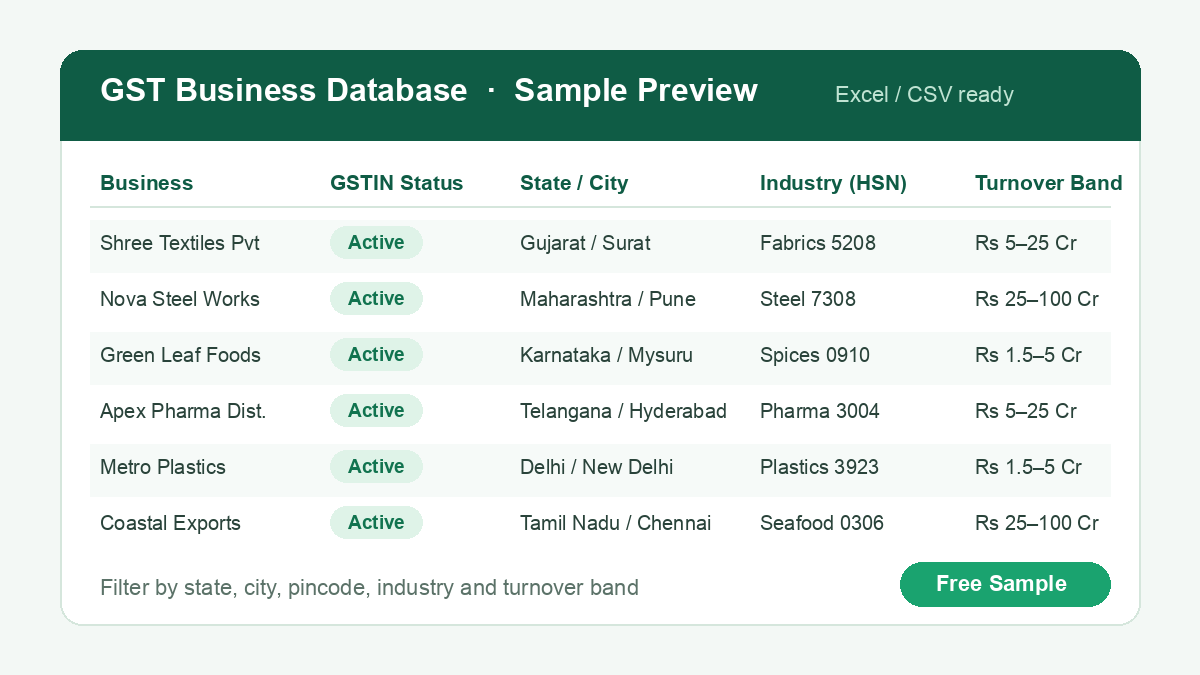
A compiled GST-based sales database is a list of registered businesses with fields such as trade name, GSTIN, state, city, pincode, constitution, registration status and contact details. It is a prospect list. It does not show what any firm sold last month, because sales figures and invoices stay inside each business’s own GST account.
Say that to your team on day one. Many first-time users search for “turnover” columns that do not exist and then think the file is broken. The useful question is not “how much did they sell” but “who sells in my product area, in my territory, and is still active”.
For the other side of the same topic, the guide on checking your own sales data from GST records covers what a business can see about itself.
Step 1: write your buyer in one line
Before touching a filter, write one line: “Hardware dealers in Rajkot and Morbi, registered as proprietorship or partnership, currently active.” Every filter you apply must come from that line. If a filter does not match a word in the line, skip it.
This one line also protects you from the common mistake of exporting everything and filtering later, which wastes hours and produces lists no one trusts.
Step 2: pick the fields to filter on
Use this order, widest to narrowest:
| Order | Field | Why it comes here |
|---|---|---|
| — | — | — |
| 1 | State | Cuts the file the most and matches the first two digits of every GSTIN |
| 2 | City or district | Fits how field teams are actually assigned |
| 3 | Pincode | Lets you build route-wise or beat-wise lists |
| 4 | Industry or product keyword | Separates dealers from makers and traders |
| 5 | Constitution | Proprietor, partnership, company: tells you who the decision maker likely is |
| 6 | Registration status | Removes cancelled and suspended registrations |
Searching in this order keeps each step small enough to check by eye.
Step 3: apply filters in Excel without losing the original
- Save a copy of the file and name it with the date. Never filter your only copy.
- Select the header row and turn on Filter from the Data tab.
- Filter State first, then copy the visible rows to a new sheet named after the territory.
- On that new sheet, filter City, then Pincode if you need route lists.
- Use the text filter with “contains” for industry words, and try two or three spellings: “hardware”, “hardwares”, “building material”.
- Filter Registration status to show only active rows.
- Sort by pincode so that neighbouring businesses sit together.
Each sheet you create is a shortlist. Name it plainly, for example “Rajkot hardware active”.
Step 4: search by GSTIN pattern when you already have a few names
A GSTIN has 15 characters. The first two digits are the state code, the next ten are the PAN of the business, and the rest identify the registration number, a default letter and a check character. If you already know a customer’s PAN, you can search the PAN block inside the GSTIN column to see whether the same entity holds registrations in other states. That is useful when one buyer has several branches and you want to approach each location.
In Excel, add a helper column with the MID function to pull characters 3 to 12, then filter on that column. Keep the helper column on your working copy only.
Step 5: clean what the search returns
Search results from any compiled file need a quick pass before they reach sales reps:
- Remove duplicate rows by GSTIN, not by name, since two firms can share a trade name.
- Trim extra spaces so that “Morbi ” and “Morbi” count as one city.
- Check that pincodes have six digits.
- Mark rows that have no contact detail so a researcher can fill them in later.
A twenty-minute clean pass usually saves several days of wasted calls.
A worked example: finding pump dealers in Coimbatore
A Chennai-based motor maker wants dealers in Coimbatore. The analyst follows the steps:
- Buyer line: “Pump and motor dealers in Coimbatore district, active, proprietorship or partnership.”
- Filter State to Tamil Nadu, then City to Coimbatore.
- Filter industry text for “pump”, “motor”, “electrical”.
- Remove cancelled registrations and duplicates by GSTIN.
- Sort by pincode and split into three route sheets.
- Mark rows without contact details for a researcher to verify.
The output is three route sheets that three field reps can start on the next morning. Notice that nothing in this process needed sales figures.
Save your searches so the next one is faster
Once a search works, write down the exact filters you used: state, city, keyword spellings, status and the date. Keep this note in the first sheet of the workbook. When a colleague or a new hire needs the same list next quarter, they repeat the steps and get comparable results instead of a fresh guess.
A simple log has four columns: date, filter used, rows returned and who used the list. After a few months it also shows which territories keep giving thin results and which keyword spellings work best, which is useful when you brief a vendor for the next batch.
Common search mistakes to avoid
- Searching only by company name, which misses firms trading under a different name than their legal name.
- Treating a blank contact field as proof that the business is closed.
- Mixing old and new downloads in one workbook, which creates duplicates with different details.
- Filtering text with “equals” when “contains” is needed, which hides spelling variants.
- Sending the full raw export to field reps instead of the cleaned shortlist.
What to do when a search returns too little
Very small results usually mean your keyword is too narrow or the file labels the industry differently. Try the parent word (“electrical” instead of “submersible pump”), widen from pincode to district, or search by neighbouring cities. If the result is still thin, the file may not cover that area. Ask the vendor, using the state-wise data and city-wise data pages as a starting point, whether your territory is covered before you buy more.
Searching a single company you already know
When you only want to look up one firm, the public GST taxpayer search can confirm legal name, trade name, state, status and registration date from its GSTIN. It will not give turnover or invoices. For a wider set of lookalike firms, return to the compiled list. If your target is a seller of goods in bulk, the GST sales database page lists the field set offered.
Frequently asked questions
Can I search the database by pincode?
Yes. Pincode is one of the most useful filters because it matches how delivery routes and field beats are drawn. Sort by pincode after filtering to keep neighbouring businesses together.
Does the database show each company’s sales figures?
No. GST returns are private to the taxpayer. A compiled sales database is a prospect list with registration and contact fields, not a record of anyone’s invoices.
Which Excel feature is best for searching a large file?
Filters plus a helper column cover most needs. For very large files, convert the range into a table so that filters and formulas stay consistent when you add rows.
How often should I refresh a searched list?
Refresh before every new campaign. Registrations get cancelled and details change, so a list searched six months ago will already have dead rows.
Ask for a sample cut of your own territory
Tell us the state, district and product line you want to search, and we will share a small sample so you can test these steps on real rows before buying. Send the details through the contact page, or look at the industry database for the sectors we cover.
From requirement to data in four steps
A simple process with a sample before any purchase.
Share your target
Location, industry and campaign goal.
Review a sample
Check format, fields and relevance.
Confirm the pack
Finalise scope and volume.
Start outreach
Import the file and begin follow-up.
More guides on GST data
How to Get GST Sales Records: Step-by-Step
Get GST sales records and discover how to easily navigate GST records. Follow our step-by-step guide to retrieve your records in 15…
Best Methods to Find Competitor Contact Info Through GST
Find contact info of competitors through GST the right way: verify in GST records, then use websites, map listings, MCA records, trade…
What Are the Business GST Phone Numbers of Competing Companies?
Why the GST registration phone numbers of competing companies stay hidden, where their business lines are published and how to use them…
Related data categories
Request a Free Sample
Share your target location, industry and campaign goal. Review sample records before choosing the final pack.