
Home / Blog / How to Download Sale Summary in GST
How to Download Sale Summary in GST
Download sale summary files from GST records: GSTR-1 and GSTR-3B summaries, multi-month views, offline invoice files, troubleshooting and a checklist.
What you can request
Tell us your target and we prepare a sample.
You can download sale summary files from GST records for any month or a full year. This guide shows how to download sale summary reports from GSTR-1 and GSTR-3B, read them correctly and fix common errors.
A sale summary is one of the documents accountants and owners most frequently need: for loan applications, audits, tender submissions, reconciliation and internal reviews. In GST records, the sale summary comes from your outward supply returns, mainly GSTR-1 and GSTR-3B. This guide walks through each download option, explains what each file contains and helps you fix problems. It applies to your own GSTIN. Another taxpayer’s sales summary stays with that taxpayer.
What You Get When You Download Sale Summary Files
Depending on your purpose, a sale summary can mean:
- GSTR-1 summary: Totals of your outward supplies by category, such as B2B, B2C, exports, credit and debit notes, with tax amounts.
- GSTR-3B Table 3.1: The summary of outward taxable supplies, zero-rated supplies, exempt and nil-rated supplies and reverse charge inward supplies.
- HSN summary: Sales grouped by HSN code with quantity and value.
- Invoice-level file: The list of every invoice you reported.
- Annual summary: Year-wise outward supplies in GSTR-9.
Download GSTR-1 summary: step by step
- log in to your GST account using your username, password and OTP.
- Click Services, then Returns, then Returns Dashboard.
- Select the financial year and return period, and click Search.
- On the GSTR-1 tile, click View or Download, depending on the state of the return.
- Click Download Filed GSTR-1 (PDF) to get the summary of a filed return. A summary with counts and amounts by table is generated.
- To get invoice-level data, use the option to download the detailed file, which is typically generated as a file you can fetch from the download link once ready.
Wait for the generation message, and use the link provided, since large files take a few minutes.
Download GSTR-3B summary
- From the Returns Dashboard, locate the GSTR-3B tile for the period.
- Click View for the filed return or Download to get the PDF.
- The PDF includes Table 3.1 outward supplies, Table 4 credit, Table 5 exempt inward supplies and tax payment details.
Use the PDF as a proof of filing and of declared sales.
Download a consolidated view for several months
GST records presents returns month by month. To create a consolidated summary:
- Download GSTR-1 summaries for each month or quarter.
- Copy totals into a spreadsheet with months in rows and categories in columns.
- Add a total row and a check against your books.
Some taxpayers use reconciliation tools that import JSON files from GST records and generate consolidated reports.
Use the offline tool for invoice-level analysis
GST records offer offline tools for GSTR-1 preparation that can also import the JSON of a filed return. Download the JSON file from GST records, open it in the offline tool and export to Excel. This is helpful for detailed analysis and for reviewing thousands of invoices.
A worked example
Imagine a spice exporter in Kochi whose bank requires a sales summary for the last six months along with proof of filing.
- The accountant logs in and opens the Returns Dashboard.
- For each month, she downloads the filed GSTR-1 summary PDF and the GSTR-3B PDF.
- She records the totals from each in a spreadsheet: exports, B2B and B2C sales and tax, and adds a column for GSTR-3B Table 3.1 values.
- She checks that GSTR-1 and 3B totals agree, and notes that a small difference in one month arises from an amendment reported later.
- She also downloads the HSN summary to show the bank sales by product category.
- She compiles the PDFs, the spreadsheet and a short note on the difference into one folder, and sends it to the bank.
The bank receives a clean, consistent package.
What each file tells you
| File | Best for |
|---|---|
| GSTR-1 summary PDF | Proof of reported outward supplies by category |
| GSTR-1 invoice-level file | Reconciliation and analysis |
| GSTR-3B PDF | Proof of return filing and tax paid |
| HSN summary | Product-wise sales view |
| GSTR-9 | Annual consolidated view |
Troubleshooting
- Download button not visible: The return might not be filed for that period. Check the filing status.
- Download takes long or fails: Retry after a few minutes, or use a different browser.
- Numbers differ between GSTR-1 and 3B: Look for timing differences, amendments or unreported invoices.
- Quarterly filer confusion: If you file quarterly, GSTR-1 is for the quarter, while invoices may appear monthly under IFF.
- Zeros in a summary: You may have selected the wrong period or filed a nil return.
Best practices
- Download and archive summaries right after filing each return.
- Name files by GSTIN, return type and period.
- Keep the acknowledgment reference numbers.
- Reconcile to your sales register before sending summaries to third parties.
- Share only what is needed, since summaries contain business information.
What stays with other taxpayers
Each taxpayer downloads only its own sale summary. Their returns, invoices and turnover stay with them under the CGST Act. The public taxpayer search provides registration details only. So skip any site offering a “sale summary of any GSTIN”. For market research, rely on MCA financials, annual reports, credit ratings, tenders and business databases by industry, city, state and pincode.
Compliance notes
Sale summaries and invoice files contain customer details. Treat them as personal and business data under the Digital Personal Data Protection Act, 2023, and share them only with those who need them. If you use customer contact data in campaigns, observe TRAI’s Do Not Disturb and telemarketing rules and provide an unsubscribe option in emails.
Get Download Sale Summary with a free sample
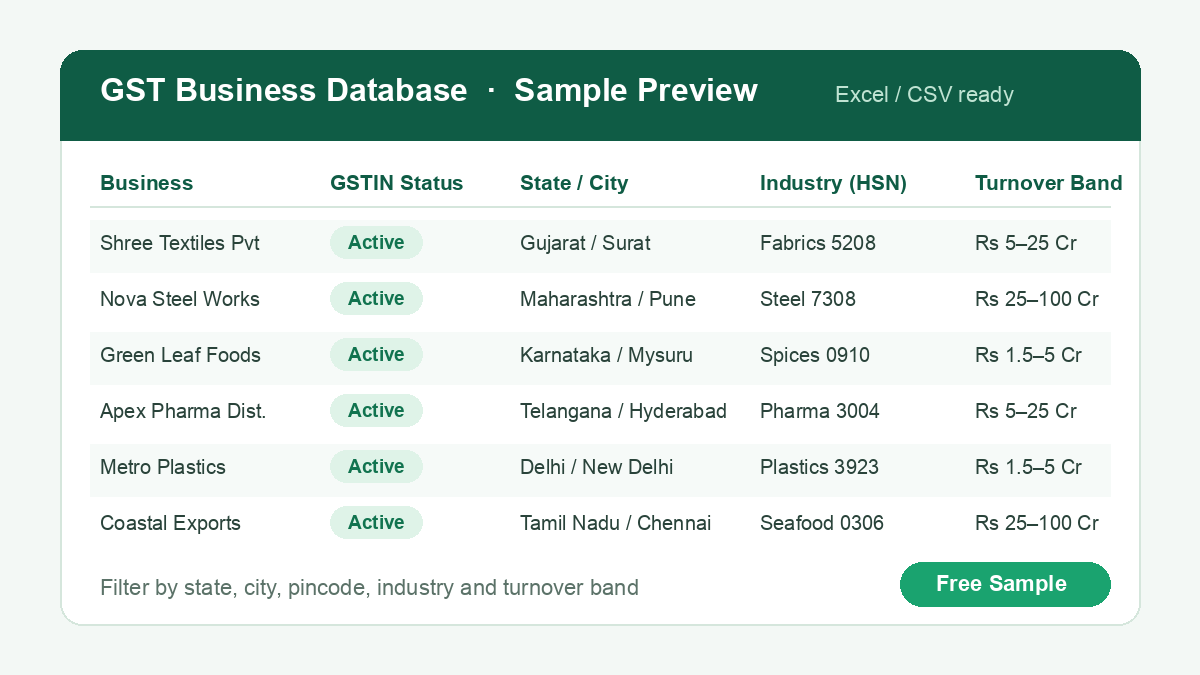
We prepare download sale summary data from GST-registered businesses, filtered by state, city, pincode, industry and turnover band. Browse the GST B2B database or the GST sales database, and verify any GSTIN on the official GST taxpayer search. Share your target segment, and we will send a free sample of download sale summary records in Excel or CSV. As a result, you can check every download sale summary field before you buy.
Frequently asked questions
Where do I find the GSTR-1 summary PDF?
In the Returns Dashboard, on the GSTR-1 tile after selecting the period, under the download options for the filed return.
Can I get the sale summary for the whole year in one click?
Not directly. Download each period or use the annual return and consolidate in a spreadsheet.
What is the difference between GSTR-1 and 3B sale figures?
GSTR-1 is invoice-wise and 3B is a summary. They should agree, apart from timing and permitted adjustments.
Who else can download my sale summary?
Only users authorised on your GSTIN, such as your authorised signatory or a GST practitioner you have appointed.
A monthly sale summary checklist
Use this routine each month once GSTR-1 has been filed.
- Log in with your own credentials and select the correct financial year and period.
- Open the filed GSTR-1 and download the summary PDF for your records.
- Download GSTR-3B for the same period and compare the outward supply table with GSTR-1.
- Note any differences and the reasons, such as amendments or timing.
- Save both files in a folder with a clear name and date.
- Update your internal dashboard.
Reading the summary correctly
The summary groups outward supplies into categories: supplies to registered persons, supplies to unregistered persons, exports, nil-rated and exempt supplies, credit and debit notes, and advances. Check that each category is reasonable for your business. For example, a firm that mostly sells to other businesses should see most value in the registered-person section. Large unexpected values in other sections can signal a classification error.
Sharing the summary
You may share your own sale summary with your accountant, a bank or a prospective buyer of your business. Share the PDF rather than your login, mark it with the purpose and date, and keep a record of who has it. Never post it on public forums.
Common reasons a summary looks wrong
- A return was filed before all invoices were entered.
- An amendment was reported in a later period.
- Credit notes were reported in a different month.
- A wrong place of supply moved tax between CGST, SGST and IGST.
- Advance receipts were treated as sales or left out.
What to do about errors
Understand the error, correct it through the permitted amendment route in a later period, document the reason and reconcile the corrected figures with your books. Avoid making repeated changes without recording why.
Wrapping up
Downloading a sale summary is a matter of knowing which return to open and which option to click. Reconcile the files with your books before sharing them. If you want business data by industry, city, state or pincode to find customers and grow your sales, contact us and we will help you find the right dataset.
From requirement to data in four steps
A simple process with a sample before any purchase.
Share your target
Location, industry and campaign goal.
Review a sample
Check format, fields and relevance.
Confirm the pack
Finalise scope and volume.
Start outreach
Import the file and begin follow-up.
More guides on GST data
Challenges with GSTN Competitors Database in Gujarat
Ten common challenges with GSTN competitors database files in Gujarat, from stale records to low adoption, with practical fixes and a quality…
Alternatives to GST Competitors Database in Mumbai
Explore alternatives to GST competitors database files in Mumbai: GST records, associations, trade fairs, field research and public tenders. Free sample.
Pros and Cons of Using a GST Competitors Database
Weigh the pros and cons of using a competitors database built on GST data: eight benefits, eight limits, a summary table and…
Related data categories
Request a Free Sample
Share your target location, industry and campaign goal. Review sample records before choosing the final pack.