
Home / Blog / How to Download GSTR-1 Data in Excel
How to Download GSTR-1 Data in Excel
Download GSTR-1 data from GST records step by step: filed and saved returns, PDF, Excel and JSON formats, the offline tool, fixes and security tips.
What you can request
Tell us your target and we prepare a sample.
You can download GSTR-1 data from GST records in PDF, Excel or JSON, both before and after filing. This guide shows how to download GSTR-1 data step by step and how to read and store the files.
GSTR-1 is the return in which a registered taxpayer reports outward supplies. Businesses need a copy of it for reconciliation, audits, bank reviews and their own analysis. This guide explains exactly how to download your GSTR-1 data from GST records in the formats available, how to handle large files and errors, and what is out of reach.
GST Records layouts change occasionally, so the wording of menus may differ slightly, but the logic is stable.
Before You Download GSTR-1 Data
You need:
- GST username and password, and access to the registered mobile number or email for OTP.
- The financial year and the return period (month or quarter).
- A reasonably current browser, and an uninterrupted connection.
- Permission: you must be the taxpayer or an authorised user such as your accountant.
Only the taxpayer’s own GSTR-1 can be downloaded by the taxpayer or authorised users. Another business’s GSTR-1 stays with that business, so only your own is available.
Step-by-step: downloading filed GSTR-1
- Log in to your GST account by typing the official address in your browser and log in.
- Go to Services, then Returns, then Returns Dashboard.
- Select the Financial Year and Return Filing Period and click Search.
- Locate the tile for GSTR-1 (or IFF if you are in the quarterly scheme and used the invoice furnishing facility for months one and two).
- For a filed return, click View or Download as applicable.
- On the page that opens, you will see options such as Download filed GSTR-1 (PDF) and Download GSTR-1 (Excel) or Generate JSON file.
- Click the required option. GST records may prepare the file and show a message. After a short time, use the Download link.
- Save the file with a clear name and verify that the period, GSTIN and acknowledgement are correct.
The three formats explained
Best for evidence. It includes table-wise summaries and the filing acknowledgement. It does not always list each invoice.
Excel
Best for analysis. You get invoice-level rows for B2B, credit notes and other tables, so you can reconcile with your books using filters and pivots.
JSON
Best for uploading into accounting software or the offline tool. It is machine-readable, not easy to read by eye.
Downloading before filing: saved data
If you have entered or uploaded data but not filed, you can still download a summary or the detailed data:
- Use Prepare Online to view and then generate a summary to check totals.
- Use the Offline Tool to download or upload JSON.
- GST records may show GSTR-1 summary and the Download invoice details option, depending on the state of the return.
Always check again after filing, since the final filed version is the reference for compliance.
Using the offline tool
For businesses with large invoice volumes, the GST offline utility helps:
- Download the tool from the GST system’s download section and install it.
- Import your invoice data from a spreadsheet template.
- Validate to detect errors.
- Generate a JSON file and upload it in GST records.
- To get data back out, download the JSON or Excel from the dashboard and open it in the tool or a spreadsheet.
Example: An Indore Food Maker Downloads GSTR-1 Data
Imagine a packaged-food maker in Indore with about 1,500 B2B invoices a month.
- The accountant prepares the invoice data in the billing software and exports it in the required format.
- She uploads the file in GST records, which reports errors on six invoices with wrong state codes.
- After fixing and re-uploading, she generates the summary, compares totals with the sales register, files the return using the digital signature or EVC, and downloads the filed PDF and Excel.
- She stores them under FY2025-26 and the month in the company’s shared drive, with the acknowledgement number in the file name.
Common Problems When You Download GSTR-1 Data
| Problem | Likely cause | Fix |
|---|---|---|
| Download button missing | Return not yet filed or still generating | Refresh, wait, or check the status |
| File is empty | Wrong period or no data | Check period and financial year |
| Generation takes too long | Large volume or heavy traffic | Try at off-peak time, do not click repeatedly |
| Error on upload | Format or validation issue | Correct as per the error report |
| Login fails | OTP or password issues | Reset via GST records, check registered mobile |
| Browser blocks download | Pop-up blocker | Allow pop-ups for GST records |
What stays with other taxpayers
- Another taxpayer’s GSTR-1. It stays with the taxpayer.
- A list of your suppliers’ sales.
- Data from periods before your registration.
If you see a service claiming to download GSTR-1 of any GSTIN, it is deceptive.
Security Tips After You Download GSTR-1 Data
- Never share your OTP.
- Give your accountant their own user account as an authorised person instead of sharing your password.
- Use GST records address only.
- Be cautious with emails or messages that contain links claiming to “verify your GSTR-1”.
- Keep downloaded files in a secure location, since they contain customer GSTINs and invoice values.
Using GSTR-1 Data After You Download It
- Reconcile with your sales register to detect missing invoices.
- Compare with GSTR-3B outward supply totals.
- Use pivots to see customer-wise and state-wise sales.
- Identify credit notes and their reasons.
- Check the HSN summary for correct codes and rates.
- Archive the pack for audit.
How to place an order
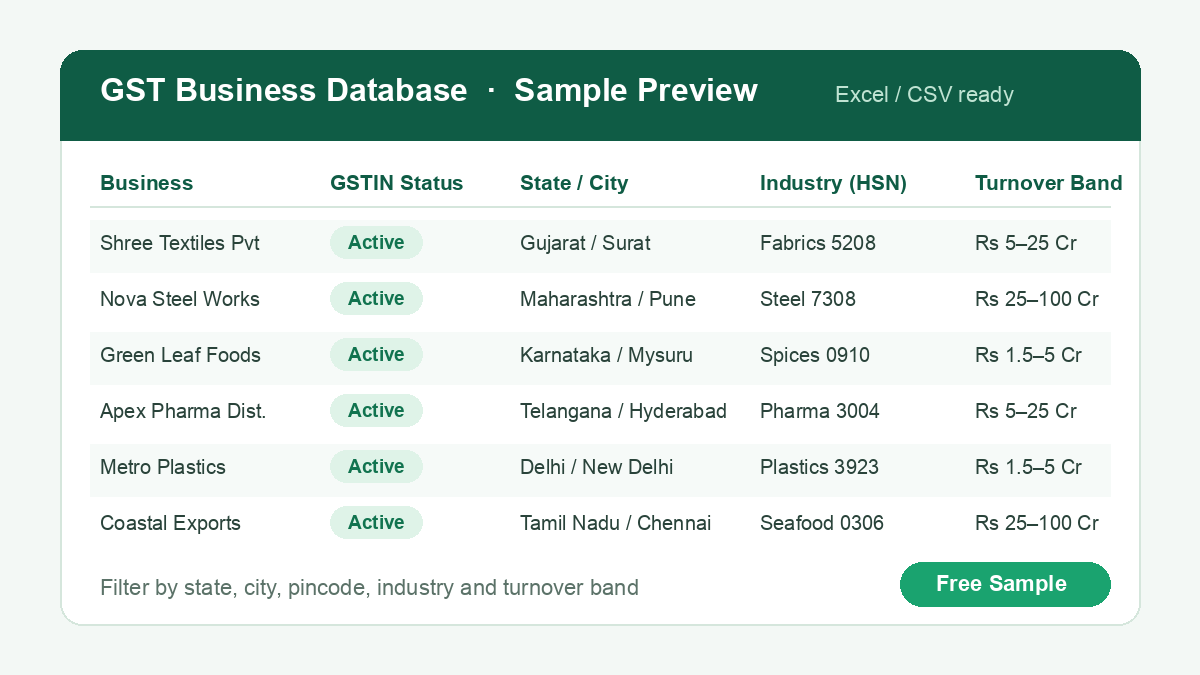
Ordering download gstr-1 data data takes three steps. First, tell us your target location, industry and campaign goal. Next, review a free sample of download gstr-1 data records in Excel or CSV. You can also explore our GST purchase database and state-wise data, and confirm any registration in GST records.
FAQs
Can my accountant download GSTR-1 for me?
Yes, if you have added them as an authorised user with appropriate rights.
Does GSTR-1 show my buyers’ details?
Yes, for B2B invoices it includes the buyer’s GSTIN, invoice number, date and value.
How long can I access old GSTR-1 data?
Historic returns remain viewable in the returns dashboard for earlier periods. Keep your own archive too.
Can you download GSTR-1 for me?
We do not access taxpayers’ GST accounts. We provide business data by industry, city, state and pincode.
Need business data?
If you want prospect lists or vendor lists for specific cities and industries, contact us with your requirement, and we will share what is available and how to use it properly.
Second example: a steel trader in Raipur with quarterly filing
Imagine a steel trader in Raipur in the quarterly return scheme. It uses the invoice furnishing facility for the first two months of each quarter and files GSTR-1 at quarter end. When the accountant wants sales data for month two, she downloads the IFF data rather than GSTR-1, because the main return only consolidates at quarter end. Knowing which tile to open saves confusion. She also downloads the quarter’s Excel file, filters by month and reconciles separately. This is a typical example of how the downloading steps vary slightly by filing frequency.
How to read the Excel file after download
- The workbook has separate sheets for each table, such as B2B, B2CL, B2CS, CDNR, exports, HSN summary and documents issued.
- Each row in B2B shows the buyer’s GSTIN, invoice number, invoice date, value, place of supply, tax rate, taxable value and tax amounts.
- Convert dates to a standard format and numbers to numeric type if the sheet imports them as text.
- Use a pivot on GSTIN to see customer-wise sales, and on rate to see tax split.
- Compare the sum of taxable value with the summary PDF to make sure nothing is missing.
Amendments and how they show in downloads
If you amend an invoice reported earlier, the amendment appears in a separate amendment table for the later period, not in the original month. When you download a later return, you will therefore see both fresh invoices and amendments. Keep a note linking each amendment to the original period so that your reconciliation remains clear.
Good file-naming and storage practice
Use a pattern such as GSTIN_GSTR1_2025-26_Apr_Filed.xlsx. Store PDF, Excel and JSON together, and keep one read-only copy. Because these files list customers’ GSTINs and values, restrict access to finance staff and auditors, and treat them as sensitive business records.
Checklist after every download
- GSTIN in the file matches your registration.
- Financial year and period are right.
- Filed status and acknowledgement reference are present for filed returns.
- Totals in Excel match totals in the PDF summary.
- No blank or truncated sheets.
- File saved in the designated folder and backed up.
- Anomalies, such as duplicate invoice numbers or negative values without credit notes, flagged to the accountant.
What to do if you suspect data is wrong
Do not edit downloaded files and treat them as official. Identify the error in your own records or in the upload, correct it through the proper route in GST records (amendment in a later return where applicable), and keep a note of the change. If the issue looks like an online service problem, use the grievance option with screenshots, and keep the ticket number. For anything involving notices or fines, consult a qualified professional.
Why this matters for compliance
GSTR-1 data drives your buyers’ GSTR-2B. If you report an invoice wrongly, your customer’s credit is affected, and they will call you. Regular downloads and checks keep your sales reporting accurate, which protects relationships as well as compliance.
FAQ
How to download GSTR 1 data from GST records?
You can download GSTR 1 data from GST records by logging in, navigating to the Returns Dashboard, selecting the appropriate financial year and return period, and then clicking on the download option. The data can be downloaded in PDF, Excel, or JSON formats.
Can I download GSTR 1 data if I haven’t filed it yet?
Yes, you can download GSTR 1 data even before filing. You can either check the summary or download the detailed data using the offline tool.
What should I do if the download button is missing?
If the download button is missing, it may be because the return has not yet been filed or is still being processed. You can refresh the page, wait, or check the status of your return.
How can I ensure that my downloaded data is secure?
To ensure security, never share your OTP, use unique user accounts for authorized personnel, and store downloaded files securely as they contain sensitive information.
Why is the downloaded Excel file empty?
An empty downloaded Excel file may indicate that the selected financial year or return period does not contain any data. Always double-check that the period and financial year are correct.
Get in Touch
If you have any further questions or need clarification on any of the steps related to downloading GSTR-1 data, please feel free to reach out to us. We’re here to help you navigate through GST records and ensure you get the data you need without any hassle. Don’t hesitate to ask your questions or share your requirements with us!
From requirement to data in four steps
A simple process with a sample before any purchase.
Share your target
Location, industry and campaign goal.
Review a sample
Check format, fields and relevance.
Confirm the pack
Finalise scope and volume.
Start outreach
Import the file and begin follow-up.
More guides on GST data
Use a Business Competitors Database Effectively
Use a business competitors database effectively: start with decisions, benchmark, map gaps, enable sales, plan pricing, monitor changes and keep data clean.
What is the Best GST Sales Data Provider in 2024?
gst sales data provider offers insights into the best solutions for businesses, including key features and a checklist for selecting the right…
How Can You Track Competitors Phone Numbers with GST Data?
Track competitors phone numbers and public footprint with GST data: a five-layer tracking system, alerts, a calendar and a competitor profile template.
Related data categories
Request a Free Sample
Share your target location, industry and campaign goal. Review sample records before choosing the final pack.