
Home / Blog / Sales Purchase Data CSV File: Import, Encoding and Clean Columns
Sales Purchase Data CSV File: Import, Encoding and Clean Columns
Sales purchase data CSV file guide: open it without damaging identifiers, handle encoding and delimiters, import it into software and keep columns clean.
What you can request
Tell us your target and we prepare a sample.
A sales purchase data CSV file is a plain text file in which each line is one record, such as one invoice or one business, and each value is separated by a comma or another delimiter. CSV is the most common way sales and purchase data moves between systems: billing software exports it, accounting software imports it, data providers deliver it and analysts load it into spreadsheets and databases. Its simplicity is also its weakness. Opened carelessly, a CSV file can lose leading characters in identifiers, turn long numbers into scientific notation, mangle names written in regional scripts or split addresses across columns. This guide explains how to handle a sales purchase data CSV file safely, from opening and importing to cleaning and exporting.
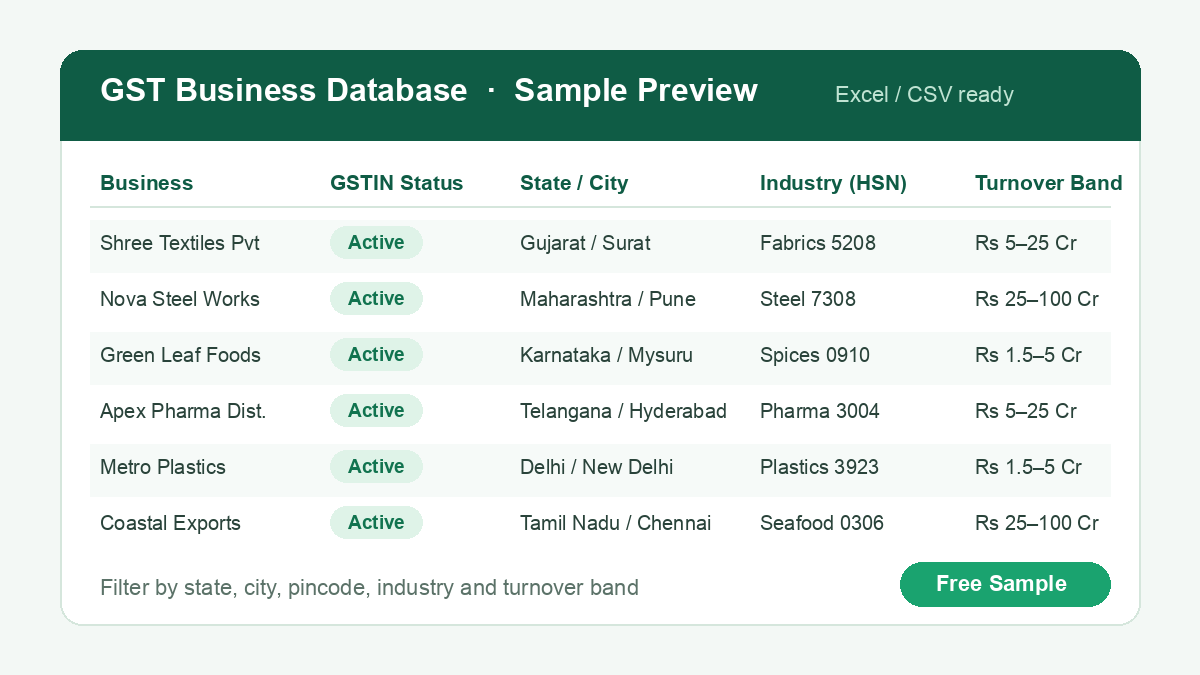
GST sales data refers to the outward supply records each registered business reports through GSTR-1 and GSTR-3B. The detailed downloads of your own returns and purchase statements, your billing exports and any compiled business file you buy often arrive in CSV or can be saved as CSV. The same care applies to all of them, whether they hold your own invoices or a list of registered businesses.
Why CSV Is Everywhere
CSV is readable by almost every program, from basic text editors to large databases. It carries no formatting, formulas or hidden sheets, so it is small and predictable. That makes it the natural format for moving data between systems that were not designed to talk to each other.
What CSV Does Not Carry
CSV holds values only. It does not record which columns are text and which are numbers, how dates are formatted or which characters set the file uses. The program opening it has to guess, and those guesses cause most problems.
Opening Without Damage
Double-clicking a CSV file usually opens it in a spreadsheet that guesses column types automatically. GSTINs, pincodes, phone numbers and invoice numbers are the main victims. A phone number may lose its leading zero, a long numeric invoice number may appear in scientific notation and a date may be swapped between day-first and month-first order.
Instead, use the spreadsheet’s import feature. Choose the file, then set the delimiter and the column types before loading. Mark GSTIN, PAN, pincode, phone, invoice number and HSN columns as text. Mark date columns with the format the file uses. Leave value columns as numbers.
Check the First Rows
After importing, look at the first few rows and a few random rows further down. GSTINs should be fifteen characters, pincodes six, phone numbers complete. Dates should make sense for the period. If anything looks wrong, close without saving and import again with corrected settings.
Encoding and Regional Scripts
Encoding decides how characters are stored. Files that contain names or addresses in regional scripts, or special symbols, need a Unicode encoding. If such a file is opened with the wrong encoding, characters appear as question marks or strange symbols.
When importing, choose the Unicode option if names look garbled. When exporting a file for someone else, save in Unicode so it reads correctly on their system. Ask any provider which encoding their files use.
Byte Order Marks
Some programs add an invisible marker at the start of Unicode files. A few older systems show it as odd characters in the first column heading. If a heading looks strange, retype it after import rather than changing the data.
Delimiters and Quoted Values
Most CSV files use commas between values. Some, especially from systems set up for other regions, use semicolons or tabs. If a file opens with everything in one column, the delimiter is different from the one your program expected. Re-import and choose the right delimiter.
Values that contain the delimiter, such as addresses with commas, should be wrapped in quotation marks in the file. Good exports do this automatically. If an address spills across several columns, the export did not quote values properly; ask for a corrected file or fix it with a careful import that treats quoted text correctly.
Tabs and Semicolons
Tab-separated files are common when the data itself contains many commas, such as long addresses or product descriptions. They often carry a different extension but behave like CSV in every other way. Semicolon-separated files usually come from software set to a region where the comma is used as the decimal mark. In those files, values such as taxable amounts may also use a comma before the paise, which a spreadsheet set to the Indian style will read as text. When you receive such a file, set both the delimiter and the decimal mark during import, then check that value columns add up to the totals the sender reports.
Importing Into Accounting or Customer Software
Accounting and customer systems usually import CSV through a template. Download the template first, then map each column in your file to the template’s fields. Common fields include party code, GSTIN, document number, date, taxable value, tax by type and ledger.
Test with a small file of a few rows before importing a full month or a full list. Check the imported records in the software, then delete the test and import the full file. Keep the original CSV unchanged as the record of what was imported.
Avoiding Duplicate Imports
Importing the same file twice doubles entries. Keep a log of each import with the file name, date and row count, and check the log before each new import. Many systems also reject duplicate document numbers, which is one more reason to keep numbers exact.
Cleaning a Sales Purchase Data CSV File
Before importing or analysing, clean the file in a copy. Remove blank rows and repeated header rows. Trim extra spaces from names and codes. Standardise state names and date formats. Remove duplicate rows by GSTIN or document number. Check that every row has the required fields.
Cleaning Steps in Order
Order matters when cleaning. First import with the right settings, because no amount of later cleaning restores characters lost on opening. Second, remove blank and repeated header rows so counts are accurate. Third, trim spaces and standardise text, since duplicates often hide behind a stray space or a different spelling of a state. Fourth, remove duplicates by the identifier that should be unique, which is the document number for invoice files and the GSTIN for business lists. Last, check required fields and set aside incomplete rows in a separate sheet with a note, rather than deleting them, so the sender can complete them.
| Problem | How it shows | Fix |
|---|---|---|
| Lost leading zeros | Short phone or pincode | Re-import with text columns |
| Scientific notation | Long numbers shown with an exponent | Re-import identifier columns as text |
| Garbled names | Symbols instead of letters | Re-import with Unicode encoding |
| One-column file | All values in column one | Re-import with the right delimiter |
| Split addresses | Address across several columns | Ask for a properly quoted export |
| Swapped dates | Days and months reversed | Set date format on import |
Exporting Cleanly for Others
When you send a CSV file to an accountant, a provider or another system, export it cleanly. Use a clear header row with simple column names. Keep identifiers as text. Use one date format throughout and say which one. Save in Unicode. Quote text values. Name the file with the business, content and period. Include a short note describing the columns.
A Simple Column Note
The column note can be a short text file sent with the CSV or a second sheet in a companion workbook. For each column, give its name, what it holds, its type and an example. State the date format, the encoding, the delimiter and the number of data rows. Mention anything unusual, such as credit notes shown with negative values or a blank GSTIN meaning an unregistered customer. A receiver who reads the note before importing makes far fewer mistakes, and the note answers most of the questions that would otherwise come back by message.
Keeping Files Safe
CSV files are plain text and can be opened by anyone with access. Store files containing customer, supplier or price information in restricted folders, avoid sending them through open channels and delete working copies once the data has been imported or archived.
Sharing Through Restricted Links
When a file has to leave the business, share it through a link that only named people can open, and set the link to expire after a few days. Avoid attaching customer or supplier files to group messages, where they are easily forwarded and hard to recall. Keep a short record of who received which file and when. If a recipient needs only some columns, such as names and districts without phone numbers, export a reduced file for them instead of sending the full one. These habits take little time and keep a sales purchase data CSV file within the people who need it.
A Worked Example From a Spare Parts Distributor
A spare parts distributor in Jamshedpur imported a monthly CSV export from its billing system into its accounting software. Each month, several customers’ GSTINs failed validation and a few invoice numbers appeared in scientific notation. Fixing them by hand took hours.
The accountant switched to importing through the spreadsheet’s import feature, marking GSTIN and invoice number columns as text, and began saving the cleaned file in Unicode before the software import. She also started an import log. The validation failures stopped, duplicate imports became impossible to miss and the monthly import took minutes.
Guides for Data Files
Working with spreadsheet files in detail is covered in GSTN sales database in spreadsheet form, and a two-way buyer and supplier file in sales purchase database spreadsheet for buyers and suppliers. Monthly downloads of both sides are in sales purchase data download for monthly matching, and a local archive in sales purchase database download into a local archive. Field meanings are in GST sales dataset field dictionary.
Frequently Asked Questions
How should I open a sales purchase data CSV file?
Use the spreadsheet’s import feature, set the delimiter and mark identifier columns as text before loading.
Why do names show strange symbols?
The file was opened with the wrong encoding. Re-import it using a Unicode option.
How do I avoid importing a file twice?
Keep an import log with file name, date and row count, and check it before each import.
What should I include when sending a CSV to someone?
A clear header, text identifiers, one date format, Unicode encoding, quoted text and a short column note.
Re-Import Your Next File the Safe Way
Open your next CSV file through the import feature with text columns set, and start an import log. When your files are clean and you want new buyers, request a sample file and practise the same steps on it.
From requirement to data in four steps
A simple process with a sample before any purchase.
Share your target
Location, industry and campaign goal.
Review a sample
Check format, fields and relevance.
Confirm the pack
Finalise scope and volume.
Start outreach
Import the file and begin follow-up.
More guides on GST data
How to Get Total Purchases From GST Portal Data and Your Books
How to get total purchases from GST portal data and your books for the accounts: build the purchases figure, tie it to…
How to Look at Sales Data: Views and Questions That Reveal Patterns
How to look at sales data: the views that reveal patterns, from trends and mix to customer cohorts, and questions that turn…
GST Data Analysis of Your Own Returns: Sales, Tax and Credit Trends
GST data analysis of your own returns: build a monthly table, read trends in sales, tax and credit, find customer concentration and…
Related data categories
Request a Free Sample
Share your target location, industry and campaign goal. Review sample records before choosing the final pack.